

The New Visual Studio .slnx Solution File Format
If working with Visual Studio solutions for years, the .sln file has probably felt like a necessary evil. It works, but it has never been pleasant to read, review, or resolve during merge conflicts. Microsoft has finally addressed this long-standing pain point by introducing a new, modern solution file format: .slnx.
This new format is designed to be simpler, more readable, and far more friendly to modern development workflows. Let’s break down what .slnx is, why it exists, and when it makes sense to start using it.
Why the Existing .sln Format Needed an Upgrade
The traditional .sln file format has been around for decades. While it has evolved over time, its core structure reflects design decisions made long before Git-based workflows, cross-platform development, and large multi-team repositories became the norm.
Some of the common issues with .sln files include:
- Hard to read and reason about – The format is not intuitive and feels closer to a generated artifact than something developers should understand or edit.
- Frequent merge conflicts – Even simple actions like reordering projects or opening a solution in different environments can cause noisy diffs
- Not friendly to tooling – Because of its legacy structure, many tools treat
.slnfiles as opaque text instead of structured data. - Poor developer experience – Comments, formatting, and clarity are all limited, making it harder to maintain in large solutions.
These problems don’t usually block development, but they quietly slow teams down—especially at scale.
Microsoft Visual Studio Solution File, Format Version 12.00
# Visual Studio Version 17
VisualStudioVersion = 17.12.35514.174
MinimumVisualStudioVersion = 10.0.40219.1
Project("{2150E333-8FDC-42A3-9474-1A3956D46DE8}") = "src", "src", "{973DA4A9-81E6-47FE-A94F-E9A6D25E4553}"
EndProject
Project("{FAE04EC0-301F-11D3-BF4B-00C04F79EFBC}") = "UrlShortener.Api", "UrlShortener.Api\UrlShortener.Api.csproj", "{1C4DA481-0DE2-41AF-90A5-64344E9C9DFC}"
EndProject
Project("{FAE04EC0-301F-11D3-BF4B-00C04F79EFBC}") = "url-shortener.AppHost", "url-shortener.AppHost\url-shortener.AppHost.csproj", "{084E589E-BD1A-4790-9E37-8A56FAFE0D1F}"
EndProject
Project("{FAE04EC0-301F-11D3-BF4B-00C04F79EFBC}") = "url-shortener.ServiceDefaults", "url-shortener.ServiceDefaults\url-shortener.ServiceDefaults.csproj", "{B3AF79BD-F012-433A-BA9A-246513CE3CAD}"
EndProject
Project("{2150E333-8FDC-42A3-9474-1A3956D46DE8}") = "aspire", "aspire", "{D883BFCD-DBED-4E87-A376-E84883E89EA2}"
EndProject
Global
	GlobalSection(SolutionConfigurationPlatforms) = preSolution
		Debug|Any CPU = Debug|Any CPU
		Release|Any CPU = Release|Any CPU
	EndGlobalSection
	GlobalSection(ProjectConfigurationPlatforms) = postSolution
		{1C4DA481-0DE2-41AF-90A5-64344E9C9DFC}.Debug|Any CPU.ActiveCfg = Debug|Any CPU
		{1C4DA481-0DE2-41AF-90A5-64344E9C9DFC}.Debug|Any CPU.Build.0 = Debug|Any CPU
		{1C4DA481-0DE2-41AF-90A5-64344E9C9DFC}.Release|Any CPU.ActiveCfg = Release|Any CPU
		{1C4DA481-0DE2-41AF-90A5-64344E9C9DFC}.Release|Any CPU.Build.0 = Release|Any CPU
		{084E589E-BD1A-4790-9E37-8A56FAFE0D1F}.Debug|Any CPU.ActiveCfg = Debug|Any CPU
		{084E589E-BD1A-4790-9E37-8A56FAFE0D1F}.Debug|Any CPU.Build.0 = Debug|Any CPU
		{084E589E-BD1A-4790-9E37-8A56FAFE0D1F}.Release|Any CPU.ActiveCfg = Release|Any CPU
		{084E589E-BD1A-4790-9E37-8A56FAFE0D1F}.Release|Any CPU.Build.0 = Release|Any CPU
		{B3AF79BD-F012-433A-BA9A-246513CE3CAD}.Debug|Any CPU.ActiveCfg = Debug|Any CPU
		{B3AF79BD-F012-433A-BA9A-246513CE3CAD}.Debug|Any CPU.Build.0 = Debug|Any CPU
		{B3AF79BD-F012-433A-BA9A-246513CE3CAD}.Release|Any CPU.ActiveCfg = Release|Any CPU
		{B3AF79BD-F012-433A-BA9A-246513CE3CAD}.Release|Any CPU.Build.0 = Release|Any CPU
	EndGlobalSection
	GlobalSection(SolutionProperties) = preSolution
		HideSolutionNode = FALSE
	EndGlobalSection
	GlobalSection(NestedProjects) = preSolution
		{1C4DA481-0DE2-41AF-90A5-64344E9C9DFC} = {973DA4A9-81E6-47FE-A94F-E9A6D25E4553}
		{084E589E-BD1A-4790-9E37-8A56FAFE0D1F} = {D883BFCD-DBED-4E87-A376-E84883E89EA2}
		{B3AF79BD-F012-433A-BA9A-246513CE3CAD} = {D883BFCD-DBED-4E87-A376-E84883E89EA2}
	EndGlobalSection
EndGlobal
Introducing the New .slnx Solution File Format
The .slnx format is Microsoft’s answer to modernizing solution files while keeping compatibility with existing workflows. Instead of being a loosely structured text format, .slnx is XML-based, readable, and intentionally designed for humans and tools alike.
The goal is not to replace how solutions work conceptually, but to improve how they are represented on disk.
In short, .slnx aims to:
- Be easier to read and edit
- Produce cleaner diffs
- Reduce merge conflicts
- Work better with modern tooling and automation
<Solution>
  <Folder Name="/aspire/">
    <Project Path="url-shortener.AppHost/url-shortener.AppHost.csproj" />
    <Project Path="url-shortener.ServiceDefaults/url-shortener.ServiceDefaults.csproj" />
  </Folder>
  <Folder Name="/src/">
    <Project Path="UrlShortener.Api/UrlShortener.Api.csproj" />
  </Folder>
</Solution>What Makes .slnx Different
The biggest difference is immediately visible when opening the file.
XML-Based and Human-Readable
The .slnx format uses a clean XML structure. Projects, configurations, and properties are clearly defined and grouped logically, making the file far easier to understand at a glance.
Deterministic Ordering
Entries in the file are written in a consistent order. This alone dramatically reduces unnecessary source control noise.
Supports Comments and Formatting
Unlike the old .sln format, .slnx supports comments and preserves formatting, which makes it easier to document intent and keep the file readable over time.
Designed for Tooling
Because it is structured XML, tools can parse, analyze, and modify .slnx files reliably without fragile text manipulation.
Side-by-Side Comparison: .sln vs .slnx
A traditional .sln file often feels cryptic, with GUID-heavy entries and minimal structure. In contrast, a .slnx file clearly expresses:
- Which projects are included
- How solution configurations are defined
- How everything fits together
Even without deep knowledge of the format, most developers can quickly understand what a .slnx file represents—something that was never true for .sln.
How .slnx Improves Source Control and Collaboration
One of the biggest wins with .slnx is how well it behaves in Git-based workflows.
- Cleaner diffs – Changes are easier to review because unrelated sections don’t shift around.
- Fewer merge conflicts – Deterministic ordering and structured data significantly reduce conflicts when multiple developers touch the same solution.
- Better code reviews – Reviewers can focus on meaningful changes instead of wading through noisy diffs.
For teams working on large solutions, this alone can save a surprising amount of time.
Migrating from .sln to .slnx
Moving from the traditional .sln format to the new .slnx format is straightforward. Microsoft provides two simple migration paths, depending on how the solution is managed.
Using the .NET CLI (for .NET solutions)
For .NET-based solutions, migration can be done directly from the command line.
dotnet sln <YourSolutionFile.sln> migrateThis command generates a new .slnx file while keeping the original .sln intact, making it safe to try without impacting current workflows.
Using Visual Studio (recommended for all project types)
Visual Studio provides the most user-friendly way to migrate, and it works across all supported languages—not just .NET. This includes C++, Python, JavaScript/TypeScript, and more.
Once the .slnx feature is enabled in Visual Studio, the solution can be saved in the new format directly from the UI:
- Right-click the solution node in Solution Explorer
- Select File → Save Solution As…
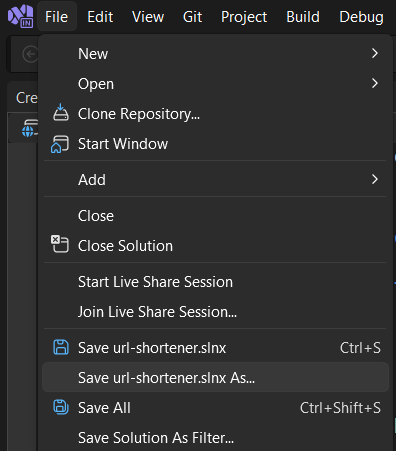
- Choose XML Solution File (*.slnx) from the file type dropdown
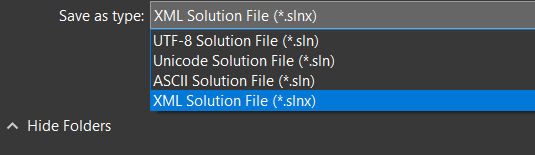
- Click Save
Tooling and Platform Support
The .slnx format is built to integrate smoothly with the modern .NET and Visual Studio ecosystem, but it does require up-to-date tooling. Before adopting it, teams should ensure their development and build environments meet the minimum supported versions.
Visual Studio support
Visual Studio provides first-class support for the .slnx format, including opening, editing, and saving solutions.
- Minimum supported version: Visual Studio 2022 version 17.13 or later, Visual Studio 2026
.NET SDK and CLI support
When building solutions using the .NET CLI, the .slnx format is supported starting with newer .NET SDK releases.
- Minimum supported .NET SDK: .NET SDK 9.0.200 or later
For consistent builds across machines and CI environments, it’s recommended to enforce this using a global.json file.
MSBuild and build tools
If builds rely directly on MSBuild rather than the dotnet CLI, the underlying build tools must also be updated.
- Required build tools: Visual Studio Build Tools 17.13 or later
Summary
The new .slnx solution file format modernizes how Visual Studio solutions are represented, making them easier to read, maintain, and collaborate on. By moving to a structured XML format, .slnx significantly reduces merge conflicts and improves compatibility with modern tooling.
To use .slnx effectively, teams must ensure their tooling is up to date. The format is supported starting with Visual Studio 2022 version 17.13 and requires .NET SDK 9.0.200 or later when building with the .NET CLI. These requirements make .slnx a natural fit for teams already adopting the latest .NET and Visual Studio releases.
Takeaways
.slnxis the new XML-based solution file format introduced by Visual Studio- It improves readability, structure, and source control friendliness compared to
.sln - Visual Studio 2022 version 17.13 or later is required to open and edit
.slnxfiles - .NET SDK 9.0.200 or newer is required when building solutions using the .NET CLI
- MSBuild-based builds must use Visual Studio Build Tools 17.13+